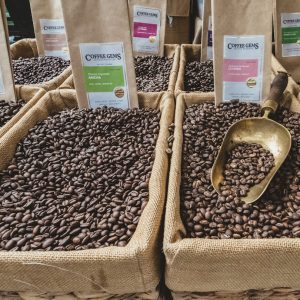
Ten Layout Ideas for a Product Landing Page
A short excerpt for ten layout ideas for a product landing page that gives the reader a reason to click through.
Read moreA short excerpt for ten layout ideas for a product landing page that gives the reader a reason to click through.
Read more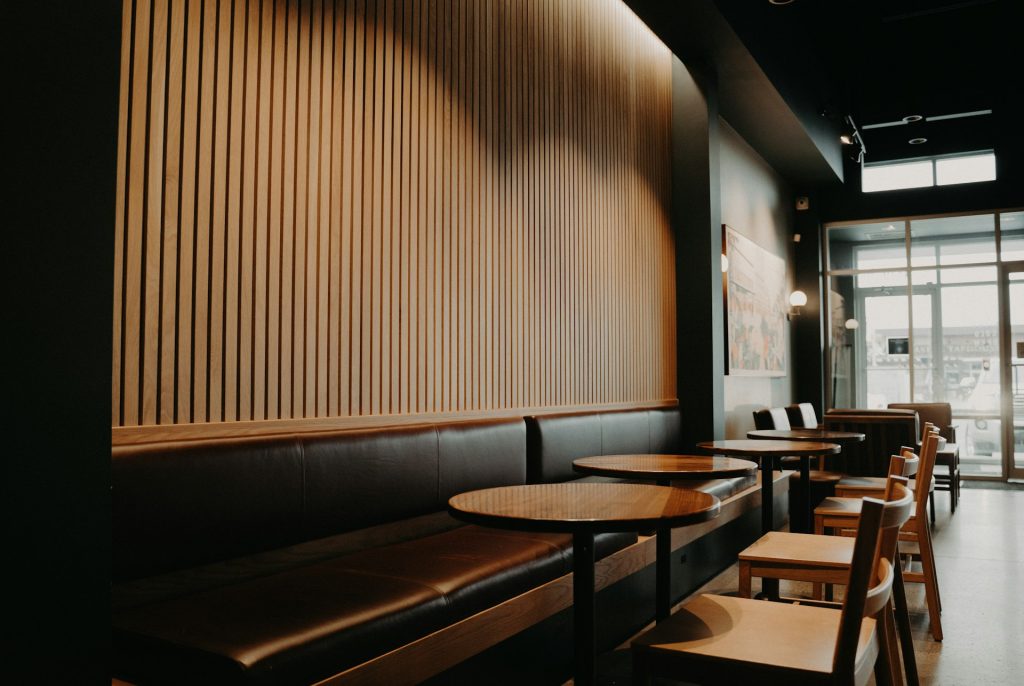
A short excerpt for how we cut page weight in half that gives the reader a reason to click through.
Read more
A short excerpt for writing headlines that convert that gives the reader a reason to click through.
Read more
A short excerpt for what changed in elementor 4.2 that gives the reader a reason to click through.
Read more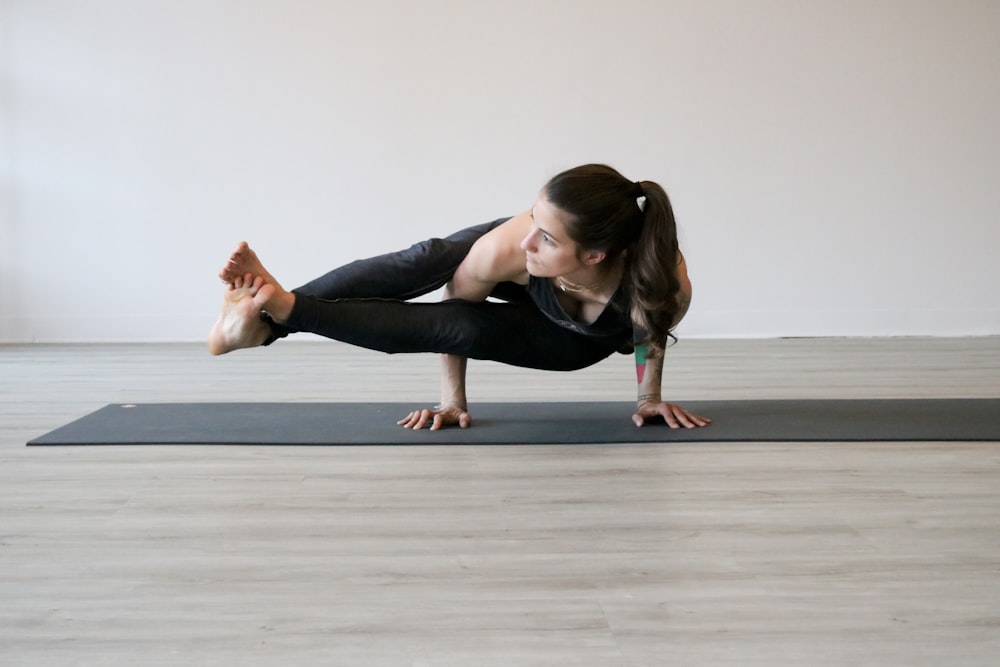
A short excerpt for a colour system for small teams that gives the reader a reason to click through.
Read more
A short excerpt for shipping a theme without a framework that gives the reader a reason to click through.
Read moreNothing to show here yet.
A short excerpt for writing headlines that convert that gives the reader a reason to click through.
Read moreA short excerpt for what changed in elementor 4.2 that gives the reader a reason to click through.
Read moreA short excerpt for ten layout ideas for a product landing page that gives the reader a reason to click through.
Read more
A short excerpt for spring release notes that gives the reader a reason to click through.
Read moreA short excerpt for shipping a theme without a framework that gives the reader a reason to click through.
Read moreA short excerpt for how we cut page weight in half that gives the reader a reason to click through.
Read moreNothing to show here yet.
A short excerpt for ten layout ideas for a product landing page that gives the reader a reason to click through.
Read moreA short excerpt for how we cut page weight in half that gives the reader a reason to click through.
Read moreA short excerpt for writing headlines that convert that gives the reader a reason to click through.
Read moreA short excerpt for what changed in elementor 4.2 that gives the reader a reason to click through.
Read moreA short excerpt for a colour system for small teams that gives the reader a reason to click through.
Read moreA short excerpt for shipping a theme without a framework that gives the reader a reason to click through.
Read moreNothing to show here yet.
A short excerpt for writing headlines that convert that gives the reader a reason to click through.
Read moreA short excerpt for what changed in elementor 4.2 that gives the reader a reason to click through.
Read moreA short excerpt for ten layout ideas for a product landing page that gives the reader a reason to click through.
Read moreA short excerpt for spring release notes that gives the reader a reason to click through.
Read moreA short excerpt for shipping a theme without a framework that gives the reader a reason to click through.
Read moreA short excerpt for how we cut page weight in half that gives the reader a reason to click through.
Read moreNothing to show here yet.
A short excerpt for ten layout ideas for a product landing page that gives the reader a reason to click through.
Read moreA short excerpt for how we cut page weight in half that gives the reader a reason to click through.
Read moreA short excerpt for writing headlines that convert that gives the reader a reason to click through.
Read moreA short excerpt for what changed in elementor 4.2 that gives the reader a reason to click through.
Read moreA short excerpt for a colour system for small teams that gives the reader a reason to click through.
Read moreA short excerpt for shipping a theme without a framework that gives the reader a reason to click through.
Read moreNothing to show here yet.
A short excerpt for writing headlines that convert that gives the reader a reason to click through.
Read moreA short excerpt for what changed in elementor 4.2 that gives the reader a reason to click through.
Read moreA short excerpt for ten layout ideas for a product landing page that gives the reader a reason to click through.
Read moreA short excerpt for spring release notes that gives the reader a reason to click through.
Read moreA short excerpt for shipping a theme without a framework that gives the reader a reason to click through.
Read moreA short excerpt for how we cut page weight in half that gives the reader a reason to click through.
Read moreNothing to show here yet.
A short excerpt for ten layout ideas for a product landing page that gives the reader a reason to click through.
Read moreA short excerpt for how we cut page weight in half that gives the reader a reason to click through.
Read moreA short excerpt for writing headlines that convert that gives the reader a reason to click through.
Read moreA short excerpt for what changed in elementor 4.2 that gives the reader a reason to click through.
Read moreA short excerpt for a colour system for small teams that gives the reader a reason to click through.
Read moreA short excerpt for shipping a theme without a framework that gives the reader a reason to click through.
Read moreNothing to show here yet.
A short excerpt for writing headlines that convert that gives the reader a reason to click through.
Read moreA short excerpt for what changed in elementor 4.2 that gives the reader a reason to click through.
Read moreA short excerpt for ten layout ideas for a product landing page that gives the reader a reason to click through.
Read moreA short excerpt for spring release notes that gives the reader a reason to click through.
Read moreA short excerpt for shipping a theme without a framework that gives the reader a reason to click through.
Read moreA short excerpt for how we cut page weight in half that gives the reader a reason to click through.
Read moreNothing to show here yet.